Introduction
Have you ever had a creative idea but couldn't act on it because you didn't have the right software? Or maybe you're sitting in a library, using a friend's computer, or working on a device where you can't install programs. What if I told you that you already have everything you need to create beautiful digital art right now?
Your web browser is about to become your personal art studio. No downloads. No installations. No waiting. Just pure creativity at your fingertips.
FreeOnlinePaint.com transforms any device with internet into a complete painting artwork station. Whether you're a student rushing to finish a visual project before class, a complete beginner who wants to explore art drawing with digital tools, or someone who just discovered they love creating digital art, this platform meets you exactly where you are.
The best part? You're literally seconds away from making your first digital creation. No credit card. No email signup. No tutorial videos you must watch first. Just open, create, and save.
Why Your Next Art Project Starts in Your Browser
Think about the last time you wanted to quickly sketch a drawing but couldn't find paper, or the markers were dried out, or you knew your hand-drawn version wouldn't look as clean as you wanted. Digital tools solve these everyday frustrations, but most digital art software creates new problems: expensive subscriptions, confusing interfaces, steep learning curves.
This is where browser-based art tools change everything. FreeOnlinePaint.com lives in the cloud, which means it exists everywhere you have internet. School computer lab? It's there. Your phone during lunch break? Works perfectly. Your grandmother's old laptop? Runs smoothly.
But convenience is just the beginning. This paint app eliminates the fear of making mistakes because you can undo anything instantly. It removes the cost barrier because everything is free. It deletes the complexity barrier because the interface is so intuitive that five-year-olds and seventy-year-olds both figure it out in minutes.
For students, this changes how you complete assignments. Instead of explaining to your teacher why you couldn't finish the visual portion of your project, you complete it during study hall using the school computer. Instead of buying expensive poster boards and markers, you create digital posters that look professional and print perfectly.
For beginners exploring digital art, this removes the biggest challenge: commitment. You don't have to spend money before knowing if you'll enjoy it. You don't have to commit storage space on your device. You simply try it, and if you love it, you keep using it. If you don't, nothing was lost.
What Makes This Different from Every Other Drawing Tool
You might be thinking this sounds similar to other online drawing tools you've heard about. Let me explain what makes FreeOnlinePaint.com genuinely different.
Instant Access Meets Real Functionality
Many "free" art platforms are actually trials that lock features behind paywalls after a few days. Others are truly free but so basic they're frustrating to use. FreeOnlinePaint.com sits in the sweet spot: genuinely free forever, but packed with features that let you create real art, not just simple doodles.
You get layers, which professional artists consider essential. You get a full color spectrum, not just eight basic colors. You get adjustable brush sizes, opacity controls, and shape tools. These aren't "premium features" – they're standard for everyone.
Speed That Matches Your Creativity
Creative inspiration doesn't wait for programs to load. When you have an idea, you need to capture it immediately. This tool loads in seconds, not minutes. Click the link, and you're staring at a blank canvas ready for your ideas. This speed matters more than people realize. The gap between inspiration and creation is where most ideas die.
Compare this to traditional software: find the program icon, wait for it to launch, wait for it to check for updates, click through welcome screens, choose your canvas settings, and finally start creating. By then, you've forgotten half of what you wanted to draw.
Your Privacy Actually Matters Here
Unlike social-media-connected art apps that want to analyze your drawings for ad targeting, or platforms that claim ownership of artwork you create, FreeOnlinePaint.com respects your privacy completely. Your drawings stay on your device. Nobody sees your practice sketches. Nobody owns your creative work except you.
This matters especially for students. Your school projects remain private until you choose to share them. Your practice attempts don't become part of some company's training data. You create in a truly private space.
It Grows With Your Skills
Beginners appreciate simplicity, but they quickly outgrow tools that are too basic. This platform scales with you. Your first day, you'll use the basic brush and color picker. A week later, you're experimenting with layers. A month later, you're creating complex compositions using every feature.
You never need to "graduate" to different software because you've outgrown this one. It supports both your first simple doodle and your hundredth detailed illustration.
Everything You Can Actually Do With This Tool
Let me walk you through the features in a way that shows you what you'll actually use them for, not just what they're called.
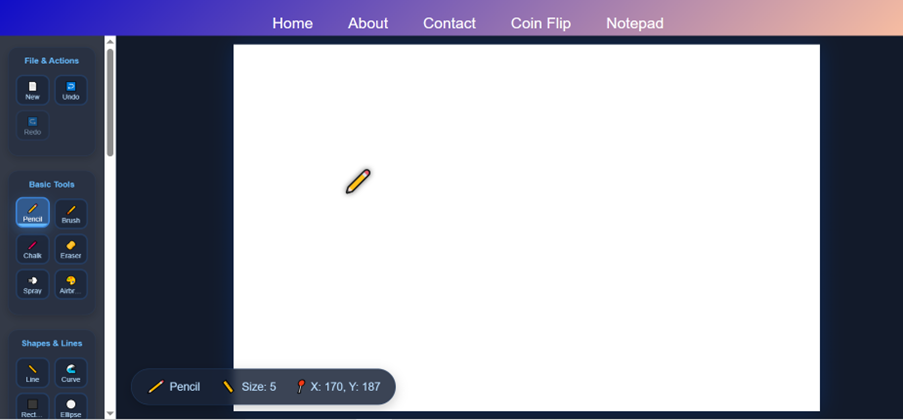
Creating Marks: Pencils, Brushes, and Erasers
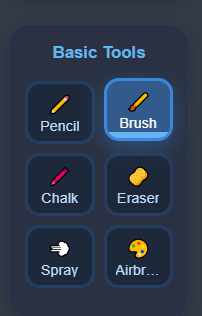
The pencil tool lets you sketch drawing with precision. Use it for outlines, details, and anywhere you need controlled, thin lines. It's perfect when you want to draw the picture structure before adding color.
The brush tool is your workhorse for filling areas, creating bold strokes, and adding texture. Adjust its size from tiny detail work to broad coverage. This is what you'll use when you're ready to paint a canvas with actual color and depth.
The eraser removes mistakes without leaving white marks over colored backgrounds. It actually deletes pixels, so your corrections are invisible.
Color Selection That Understands Artists
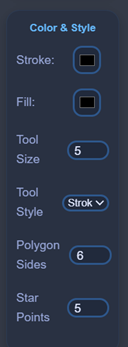
The color picker isn't just a basic palette. Click anywhere on the color spectrum, adjust brightness and saturation, and you have access to millions of exact colors. Need that specific shade of blue from your school logo? You can match it perfectly.
There's also a color history that remembers your recently used colors. This is incredible when you're working with a specific palette and need to switch between three or four colors repeatedly.
Shapes for Structure and Design
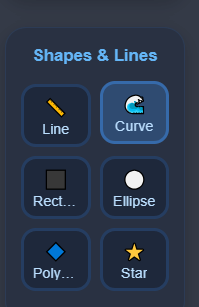
Perfect circles, precise rectangles, and straight lines appear instantly with the shape tools. This matters more than beginners realize. Try drawing by computer with just a freehand brush, and you'll understand why shape tools are essential for clean, professional-looking work.
These tools are especially valuable for students creating diagrams, charts, infographics, or any project that needs geometric precision.
Text That Integrates Seamlessly
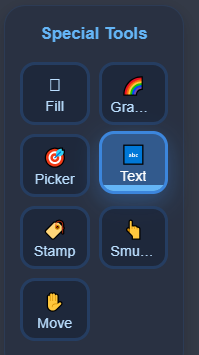
Adding text to your artwork shouldn't look like an afterthought. The text tool lets you choose fonts, sizes, and colors that match your artistic vision. Type labels, titles, captions, or entire paragraphs directly onto your canvas.
This feature transforms the tool from just a drawing program into a complete visual communication platform. Create posters, social media graphics, educational diagrams, or any project that combines words and images.
Layers: Your Safety Net and Creative Freedom
Imagine painting on transparent sheets stacked on top of each other. That's how layers work. Put your background on the bottom layer. Add your main subject on the middle layer. Place details and effects on the top layer.
Why does this matter? Because you can edit each layer independently. Don't like the background? Change it without touching your subject. Want to try the subject in different positions? Move that layer around without affecting anything else.
Layers also let you experiment fearlessly. Duplicate a layer, try a crazy idea on the copy, and if it doesn't work, just delete that layer. Your original remains safe.
Undo and Redo: Time Travel for Artists
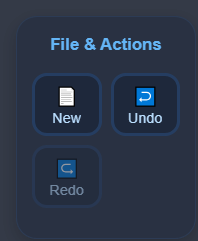
Every artist makes mistakes. Professional artists make dozens per project. The difference is they can fix them instantly. You get unlimited undo steps, so you can reverse any action from the last few minutes of work.
The redo button brings back actions you undid, in case you change your mind. This means you can experiment with different versions of the same element, undoing and redoing to compare them directly.
Save and Export Options
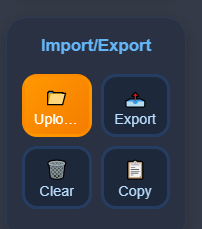
When you finish creating, download your work as an image file. This file works everywhere: insert it into documents, upload it to social media, print it as a poster, email it to your teacher, or use it as your desktop wallground.
You can also save projects to continue working on them later. This is perfect for complex projects that take multiple sessions to complete.
How Students Actually Use This Every Week
Let me share real scenarios where this tool becomes essential for student life.
Science Class Visual Projects
Your biology teacher assigns a diagram of a cell with labeled parts. Instead of drawing by hand and hoping your labels are readable, you open FreeOnlinePaint.com and create a clean, professional diagram. Use shape tools for the cell membrane and organelles. Add colors to distinguish different parts. Use the text tool for perfect labels. Print it out or submit it digitally.
The whole project takes 30 minutes instead of two hours, and it looks significantly better than hand-drawn versions.
History Timeline Assignments
Create visual timelines with dates, events, and images. The straight line tool keeps your timeline perfectly horizontal. Text boxes add event descriptions. Different colors represent different historical periods. The result looks professional enough that you're proud to present it to your class.
Creative Writing Illustrations
Your English teacher wants illustrations for your short story. You don't consider yourself an artist, but you have ideas in your mind. This tool lets you bring those ideas out even with basic skills. Simple scenes, character sketches, or symbolic images that represent themes in your story.
The pressure is off because you can erase and retry unlimited times. Your creativity flows because there's no cost to experimenting.
Math Geometry Demonstrations
Draw accurate geometric shapes to demonstrate concepts. Show angle relationships, create tessellations, or illustrate geometric proofs. The precision tools make mathematical accuracy achievable even for students who struggle with freehand drawing.
Group Project Contributions
Working on a group project where everyone contributes pieces? This tool works on any computer, so all group members can access it. Create your portion at home, save it, share the file, and someone else can add their part. No compatibility issues, no software conflicts.
Your Complete First Project: Step by Step
Let's create something together right now. I'll guide you through a simple project that teaches you all the basic skills.
Project Goal: Create a simple landscape scene with a sky, ground, sun, and tree.
Starting Your Canvas
Open FreeOnlinePaint.com in your browser. You see a white canvas. This is your playground. Focus on the process.
Creating the Sky
Select the brush tool. Make it larger by adjusting the size slider – try setting it around 50. Pick a light color from the color picker. Move to the top of your canvas and paint horizontal strokes from left to right, covering the top half of your canvas. This is your sky.
See how easy that was? You just covered half your canvas in seconds. If you don't like the color, hit undo and try a different blue.
Adding the Ground
Pick a green color – maybe a grass green. Keep your large brush. Paint the bottom half of your canvas. You now have sky and ground. Your scene has dimension.
Drawing the Sun
Switch to the circle shape tool. Pick a bright yellow. In your sky area, click and drag to create a circle. That's your sun. Too small? Undo and make it bigger. Too big? Undo and make it smaller.
Want to make it more interesting? Switch to orange and add an online paint brush glow around it by painting soft strokes in a circle around the yellow sun.
Sketching the Tree
Now comes the fun part. Switch to the pencil tool. Make it smaller – around size 10. Pick brown. In your ground area, draw a vertical line for the trunk. Add a few branches coming off the sides.
Switch to green. Draw a rough cloud shape above the branches for leaves. Don't try to make it perfect – real trees aren't perfect either.
Adding Details
This is where you make it yours. Add white clouds in the sky. Put some flowers in the grass. Draw birds as simple V shapes. Add your name at the bottom using the text tool.
Saving Your Work
Click the save button. Give it a name like "My First Landscape." Congratulations – you just created a complete digital artwork from scratch.
This entire project took maybe 10 minutes, and you learned: brush control, color selection, shape tools, layering colors, detail work, and saving files. These are the foundation skills for all digital art.
Why This Beats Installing Software On Your Computer
Let's be practical about why browser-based tools make more sense for most people's actual needs.
No Storage Space Consumed
Programs like Photoshop or GIMP require gigabytes of storage. For students with school-issued laptops with limited storage, or anyone with an older computer, this space simply isn't available. FreeOnlinePaint.com uses zero storage because it runs in your browser.
Works on Restricted Computers
School computers, library computers, and work computers often block software installations. Browser tools work on these restricted systems because nothing needs to be installed. You just visit a website like you would visit any other site.
Automatic Updates
Desktop software requires manual updates. You're working on a project, try to open the program, and suddenly it demands you update before you can use it. Browser tools update automatically in the background. You always use the latest version without interruption.
No Compatibility Issues
Bought a new computer? Desktop software often requires buying new licenses for the new operating system. Switched from Windows to Mac? Your Windows software doesn't work. Browser tools work on every operating system identically. Windows, Mac, Linux, ChromeOS – all work exactly the same.
Access From Anywhere
You start a sketch drawing at home on your personal computer. Later, you're at school and want to continue working on it. With desktop software, your work is trapped on your home computer. With browser tools, save your file to a cloud storage service or email it to yourself, then open and continue working from any device.
This flexibility is why students and casual users increasingly prefer browser-based tools over traditional software.
Comparing This to Other Free Online Painting You've Seen
You've probably encountered other free drawing tools online. Here's honest comparison.
Better Than Basic Drawing Tools
Many "free online drawing" sites offer only the most basic functionality: a few brush sizes, eight colors, no layers. They're fine for young children but frustrating for students and adults who want to create something substantial. FreeOnlinePaint.com sits above this category by including professional features while maintaining simplicity.
More Accessible Than Complex Alternatives
GIMP is free and incredibly powerful, but it's also overwhelming for beginners. Hundreds of menu options, confusing terminology, and a steep learning curve. FreeOnlinePaint.com gives you enough power to create quality work without the complexity that scares beginners away.
Faster Than Feature-Heavy Platforms
Some online art platforms load slowly because they include social features, galleries, chat functions, and other non-essential elements. FreeOnlinePaint.com focuses purely on creation tools, which means it loads fast and runs smoothly even on slower internet connections.
More Private Than Social Art Apps
Platforms that integrate with social media are great for artists building audiences, but terrible for privacy. Students don't need their practice sketches shared publicly. This tool keeps everything private unless you explicitly choose to share.
Practical Tips That Actually Improve Your Results
These strategies come from watching real beginners improve their digital art skills.
Master Undo Before Trying Perfection
New digital artists try to make every stroke perfect, leading to frustration. Instead, draw loosely knowing you can undo anything. Make bold attempts. If it doesn't work, undo it. This mindset shift dramatically improves both your speed and final results.
Use Reference Images
Want to draw by computer something realistic? Open a reference image in another browser tab. Look at it frequently as you draw. Nobody expects you to draw from imagination alone. Professional artists use references constantly.
Start With Simple Subjects
Don't begin your digital art journey trying to paint a photorealistic portrait. Start with simple objects: a coffee mug, a book, a flower. Build confidence with manageable subjects before attempting complexity.
Save Multiple Versions
Working on something important? Save it, then save another copy with a different name. Make experimental changes to one version while keeping the original safe. This lets you try risky ideas without fear of ruining your work.
Take Breaks and Return With Fresh Eyes
After staring at your artwork for an hour, you can't see its flaws anymore. Save it, close it, and look at something else. Return an hour later or the next day. You'll immediately spot issues you couldn't see before.
Study Work You Admire
Look at digital art you find impressive. How did they use colors? How did they create depth? You can learn entire techniques just by observing and then attempting to recreate effects you notice.
Practice Specific Skills Separately
Struggling with smooth curves? Spend 10 minutes just drawing curves. Want better color sense? Spend a session just mixing colors and seeing how they interact. Isolated practice improves specific weaknesses faster than always working on complete pieces.
Embrace Your Personal Style
Beginners often try to replicate exactly what they see others create. Your "flaws" might actually be your unique style. Maybe your lines are looser, your colors bolder, your shapes more geometric. These aren't mistakes – they're what make your art yours.
Understanding What Makes Digital Art Different
If you're coming from traditional art, digital tools work differently in ways that matter.
Perfection is Optional, Not Required
Traditional art has permanence. Pen marks stay. Paint dried wrong can't be changed. Digital art is infinitely malleable. This changes the entire creative process from "get it right the first time" to "experiment until it's right."
Colors Are Unlimited and Reusable
Traditional artists buy colors. Run out of that specific blue? Can't finish your painting until you buy more. Digital artists have infinite quantities of every color, always. Need to paint a canvas entirely blue? You have enough blue to cover a thousand canvases.
Layers Change Everything
This is the biggest conceptual difference. Traditional artists work on one surface where everything merges together. Digital artists work on multiple transparent layers that can be edited independently. This is like being able to lift the sky off your painting, change it completely, and put it back without affecting anything else.
Precision and Spontaneity Coexist
Digital tools let you switch between mechanical precision (perfect circles, straight lines) and organic spontaneity (loose sketching, gestural painting) instantly. Traditional art forces you to choose one approach based on your tools.
Conclusion
Every artist, designer, and creative person you admire started exactly where you are right now - staring at a blank canvas, wondering if they could actually create something worth sharing. The difference between them and people who only dream about creating is simple: they started.
FreeOnlinePaint.com removes every excuse that stops people from beginning. No money needed. No software to install. No complicated tutorials to study first. Just you, your ideas, and a tool that gets out of your way so your creativity can flow.
This isn't about becoming a professional artist overnight. It's about discovering that you can paint online, sketch drawings, and bring your ideas to life right now, today, this moment. Whether you need to finish a school project, want to sketch the drawing that's been in your mind all week, or simply want to relax by creating something colorful, everything you need is already available.
The question isn't whether you're talented enough or skilled enough. The question is are you up for this try. Open the tool. Pick a color. Make your first mark. That's how every creative journey begins - with one simple, brave decision to start.
Your masterpiece isn't going to create itself.
FAQs
-
Do I need artistic talent to use this?
No. This tool is for creating useful images, not just fine art. Students use it for school projects without being "artistic." You need ideas and willingness to experiment, not inherent talent. -
How long until I can make something I'm proud of?
Many people create something they like in their first session. It won't be gallery-worthy, but it will accomplish what they needed. Your first landscape might be simple, but if it makes you smile, that's success. -
Can I use this if I only have a trackpad?
Yes. Many users work entirely with trackpads. You develop control with practice. Drawing tablets give better control, but trackpads work fine for most projects, especially geometric designs and text-heavy graphics. -
What if I accidentally close my browser?
If you saved your work, you're fine – just reopen it. If you didn't save, your work is lost. This is why experienced users save frequently, even when they're not finished. -
Is this good enough for serious projects?
Depends on your definition of serious. School assignments? Absolutely. Social media graphics? Definitely. Posters and flyers? Yes. Professional illustration for publication? Probably not – you'd want more advanced tools for that level. But for the vast majority of everyday needs, this tool delivers professional-looking results. -
Why is this completely free?
Some tools are free because they're trying to hook you on a free trial before charging. FreeOnlinePaint.com is genuinely free because it's designed to be accessible to students and beginners who can't afford expensive software. No catch, no hidden fees. -
Can I print my creations?
Yes. Your saved images print like any image file. Open the file, choose print, and it outputs at whatever size you set. For best print quality, work on larger canvases – bigger is better for printing. -
Does this replace professional art software?
For beginners and students, absolutely. For professional artists, probably not – they need specialized features this doesn't include. But most people aren't professional artists. Most people just need to create visual content occasionally, and for that, this tool is perfect. -
Can I collaborate with someone on the same project?
Not simultaneously, but sequentially. Save your project file, send it to someone else, they open it and continue working, then send it back. This works great for group projects. -
What happens to my art if the website shuts down?
Your saved files stay on your device forever – they don't depend on the website existing. Think of this like using Microsoft Word – even if Microsoft disappeared, your saved documents would still open in other programs. -
Should beginners start here or with paper and pencil?
Start wherever feels most comfortable. Some people think better with digital tools, others with traditional materials. There's no "correct" starting point. If you're curious about digital, jump in. If you prefer paper first, that's equally valid. -
How do I know if digital art is right for me?
Spend one hour with FreeOnlinePaint.com creating something. Anything. If you enjoyed the process, keep going. If you hated it, you learned something valuable without spending money. An hour of experimentation answers this question better than any article. -
Can I switch between this and other tools as I learn?
Absolutely. Many artists use multiple tools for different purposes. Use this for quick sketches and school projects, then experiment with other tools for specific features. Your skills transfer between programs. -
Why does my art look different on my phone versus my
computer?
Different screens display colors slightly differently. This is normal and happens with all digital art. For critical color accuracy (like school logo colors), check your work on the device where it matters most. -
What's the biggest mistake beginners make?
Giving up after their first creation looks "bad." Your first attempts won't match your vision – nobody's do. Artists improve through repetition. Make ten drawings, and your tenth will blow your first away. Make a hundred, and you'll be genuinely skilled.
Current Blogs
Upcoming Related Blogs
- Advanced Digital Art Techniques: Taking your browser-based art to the next level
- Student Project Showcase: Real examples of classroom assignments created with online tools
- Digital Art vs Traditional Art: Which is better for beginners?
- Creating Professional Graphics: From student to semi-pro
- Color Theory for Digital Artists: Making your art pop
- Layer Mastery Guide: Unlocking the full potential of layers
- Quick Art Projects: 30-minute creative challenges